Skip to content
Indian Font Converters

Popular

Type a font name in English or in its own script. Search runs in your browser on a prebuilt index; nothing you type is sent anywhere.

BengaliUnicode → Legacy

Unicode to Bijoy Converter

Turn Unicode Bengali like “বাংলাদেশ” into Bijoy Classic / SutonnyMJ keystrokes for Word and DTP software, and see exactly which characters the font can’t show.

0 chars0 words
<1 ms
Live conversion Private
20
  • Runs on your device

    Nothing is uploaded. Works offline once loaded.

  • Both directions

    Swap to go Bijoy → Unicode in one click.

  • Loss report

    Characters a font can’t show are flagged, not dropped.

  • 309 mappings

    Every one is listed in the chart below.

01 · About the font

Bijoy Classic / SutonnyMJ, in plain words.

The keyboard and font family that put Bangla on computers in Bangladesh and still drives newspapers, offices and print.

The Bijoy keyboard layout was developed by Mustafa Jabbar, and the first Bijoy software was released for the Macintosh in December 1988 (a Windows version followed in the 1990s). Its fonts, of which SutonnyMJ is the best known, became the usual way to type Bangla for decades. Bijoy fonts are ASCII fonts: the file stores English letters and the font draws Bengali letters.

Bengali makes ASCII encoding unusually awkward. The vowel signs ি, ে and ৈ appear to the left of the consonant but are typed in the same visual order, and ো and ৌ are written in two parts that wrap around it. A converter has to rebuild the correct logical order before Unicode text will render properly.

Today most Bengali text on phones, social media and the web is Unicode. Bijoy remains a typing habit more than a text format: many Bangladeshi typists type with the Bijoy layout, using Bijoy-compatible Unicode keyboards, and still receive or archive documents in SutonnyMJ.

Unicode (as typed)

বাংলাদেশ

Bijoy Classic / SutonnyMJ keystrokes (converted by this page)

evsjv‡`k

This sample is converted with the same engine as the tool above, when this page was built, and matches the expected text exactly.

Who still uses it

  • 01

    Newspapers and publishers in Bangladesh

    Archives and page layouts typed in SutonnyMJ and related Bijoy fonts.

  • 02

    Government offices and the education sector

    Forms, circulars and theses typed in Bijoy fonts that now need to be searchable and shareable online.

  • 03

    Press and DTP

    Print layouts that still expect Bijoy-encoded text, especially when working with older software.

  • 04

    Bengali typists in West Bengal and the diaspora

    Anyone with old Bijoy files who wants them on Facebook, Google Docs or a phone.

02 · How to

How to convert Unicode to Bijoy (4 steps)

Some printers, layout programs and typing-test environments still need text in Bijoy Classic / SutonnyMJ. This converter writes the exact keystrokes the font expects and lists any characters the font cannot show, so nothing is lost without you knowing.

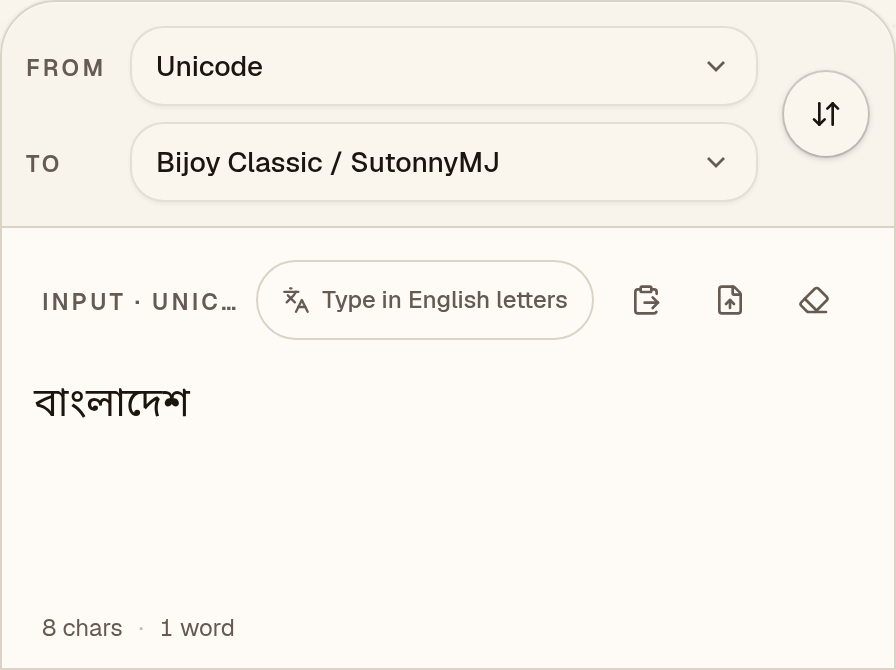
  1. Paste your Unicode Bengali

    Check that “To” says Bijoy Classic / SutonnyMJ, then paste Unicode Bengali such as “বাংলাদেশ” from Word, Google Docs or WhatsApp.
    Unicode to Bijoy converter with “To” set to Bijoy Classic / SutonnyMJ and the Unicode Bengali sample “বাংলাদেশ” in the input box
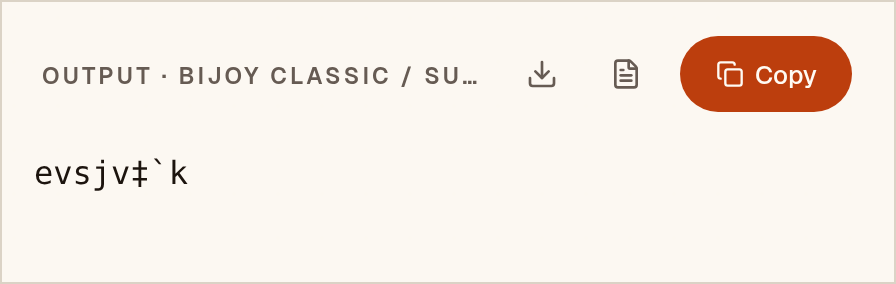
  2. Read the Bijoy keystrokes

    The output is the keystrokes Bijoy Classic / SutonnyMJ expects: “evsjv‡`k”. It looks like English letters until the Bijoy Classic / SutonnyMJ font is applied. Characters the font can’t show are flagged under “notes”; this sample has none.
    Output box showing the Unicode Bengali sample converted to Bijoy keystrokes: “evsjv‡`k”
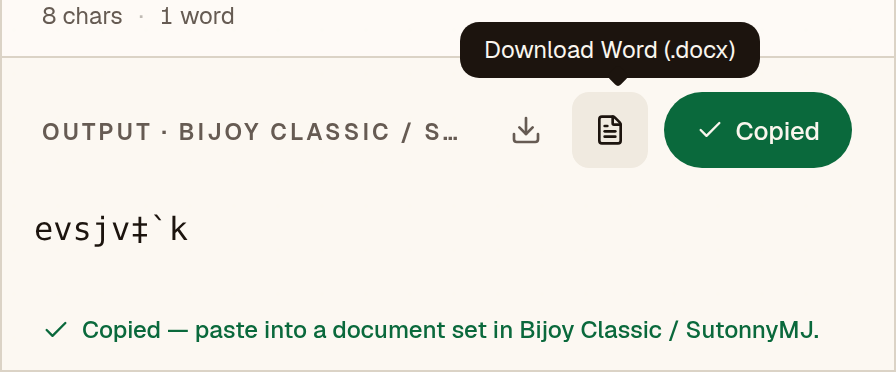
  3. Copy it into a Bijoy document

    After you copy “evsjv‡`k”, the converter reminds you to paste it into a document set in Bijoy Classic / SutonnyMJ. The text shows as Bengali only where that font is installed.
    Unicode to Bijoy converter after Copy, with the message “Copied — paste into a document set in Bijoy Classic / SutonnyMJ.”
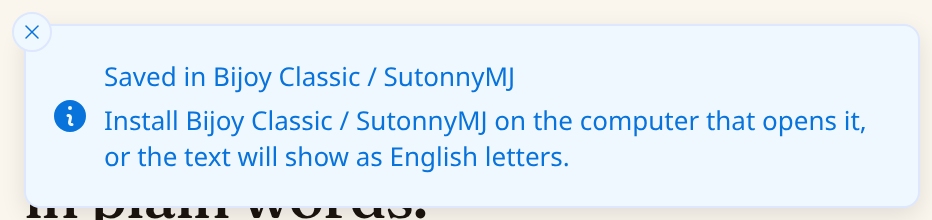
  4. Or save a Word file

    The Word button saves a .docx already set in Bijoy Classic / SutonnyMJ. Install Bijoy Classic / SutonnyMJ on the computer that opens it, or “evsjv‡`k” will show as English letters.
    Notice after the Word download: “Saved in Bijoy Classic / SutonnyMJ. Install Bijoy Classic / SutonnyMJ on the computer that opens it, or the text will show as English letters.”

Have a whole document instead of a paragraph? The Word file converter keeps tables, bold text and layout.

03 · Worked example

One sentence, step by step.

This is the real output of the converter above for the sentence below, generated when the page was built. It reads back to the same Unicode with no warnings.

Unicode (typed)

বিজ্ঞান ও প্রযুক্তির উন্নয়ন

Bijoy Classic / SutonnyMJ keystrokes (converted)

weÁvb I cÖhzw³i Dbœqb

What to look for in the output

  • িw

    The vowel sign ি is typed (and drawn) before the consonant it follows in Unicode.

  • জ্ঞÁ

    The conjunct জ্ঞ is one dedicated Bijoy key, not জ + ্ + ঞ.

  • প্রcÖ

    The ra-phala in প্র is a separate glyph that follows the base letter.

04 · Loss report

Characters Bijoy Classic / SutonnyMJ can’t show.

We ran this converter over every assigned character of the Bengali block (U+0980–09FF), 96 in all, one at a time. Marks that need a base letter were tested on ক. 72 of them convert and decode back to the same character (75%); the other 24 have no glyph in Bijoy Classic / SutonnyMJ. The engine keeps them as Unicode in the output and flags them, so you can fix the source text before it goes to print.

Exact
72
With a note
0
Can’t show
24

The 24 characters with no Bijoy Classic / SutonnyMJ glyph

  • ঀU+0980
  • ঌU+098C
  • ক়U+09BC
  • ঽU+09BD
  • কৄU+09C4
  • ৠU+09E0
  • ৡU+09E1
  • কৢU+09E2
  • কৣU+09E3
  • ৰU+09F0
  • ৱU+09F1
  • ৲U+09F2
  • ৳U+09F3
  • ৴U+09F4
  • ৵U+09F5
  • ৶U+09F6
  • ৷U+09F7
  • ৸U+09F8
  • ৹U+09F9
  • ৺U+09FA
  • ৻U+09FB
  • ৼU+09FC
  • ৽U+09FD
  • ক৾U+09FE

Letters shown on a base consonant are combining marks. Most entries are historic, regional or Vedic additions to the block; check the list before you type a name that uses one.

05 · Print & DTP

Using the output in Word, CorelDRAW and PageMaker.

The converted text is ordinary Latin characters. It only looks like Bengali once Bijoy Classic / SutonnyMJ is applied, so the same font must be installed wherever the file is opened or printed. These are general steps: menu names may differ by version.

Microsoft Word

  1. 1In Word’s font box, Bijoy Classic / SutonnyMJ may be listed as “sutonny mj” or “sutonnymj”. Pick the name your installed copy shows.
  2. 2Turn off spell-check for the pasted text (Review → Language → Set Proofing Language → Do not check spelling or grammar). Word sees Latin letters and underlines everything.
  3. 3If you edit the text by typing, also turn off AutoCorrect’s “smart quotes”: legacy fonts use the straight ' and " keys for letters, and curly quotes are different characters.
  4. 4Before you send a PDF, check that it really contains the font: open it on a computer without Bijoy Classic / SutonnyMJ, or look under File → Properties → Fonts in Acrobat Reader.

Menu names and the PDF options may differ by Word version and platform.

CorelDRAW

  1. 1Choose the Text tool and set the font to Bijoy Classic / SutonnyMJ before you paste, or select the pasted text afterwards and change it.
  2. 2If CorelDRAW offers to keep or discard the source fonts and formatting when you paste text, choose the option that applies the font you picked rather than the one from the clipboard.
  3. 3Use the font box on the property bar to confirm the text really is in Bijoy Classic / SutonnyMJ; legacy text in a Unicode font looks like random Latin letters.
  4. 4Before sending the file to a printer, convert text to curves or embed fonts, depending on what the printer asks for.

Dialog wording and the way fonts are embedded may differ by CorelDRAW version.

Adobe PageMaker

  1. 1Select the Text tool, click into a text block and choose Bijoy Classic / SutonnyMJ from the Type → Font menu.
  2. 2Paste the converted text as plain text so the legacy characters are not restyled by the clipboard.
  3. 3Send the printer the publication together with the font file, or ask them to install the same font version; a different version of the same-named font can place a few characters differently.

PageMaker is no longer sold or updated by Adobe, so check which version your printer still uses. Menu names may differ by version.

06 · Exams & submissions

Before you submit or print.

Requirements for fonts, keyboard layouts and file types are set by each exam body, office or press and change over time. We do not list them; a short checklist that applies to any of them:

  1. Check the official notice first

    Whether an exam, office or tender asks for Bijoy Classic / SutonnyMJ, for Unicode, or for a particular keyboard layout differs by recruiting body and year. Read the current official notice for the font name, the layout and the file format before you convert anything.

  2. Convert, then compare against the original

    Convert the Unicode source to Bijoy Classic / SutonnyMJ, paste it into the document with Bijoy Classic / SutonnyMJ selected, and read it against the original on screen. Anything the loss report flags is not in the font; fix it in the source rather than hoping it prints.

  3. Keep the Unicode source

    Keep your Unicode original. If a notice changes, a reviewer needs searchable text, or the legacy file is damaged, you can convert again; a Bijoy Classic / SutonnyMJ file cannot be searched or read on a phone without Bijoy Classic / SutonnyMJ.

  4. Test the printed or exported copy

    Open the exported PDF or print a page before the deadline. If the notice requires a file type, convert and test on the same type of device the recipient will use.

07 · Output font

Set the output font to Bijoy Classic / SutonnyMJ in MS Word

The converted text is Bijoy Classic / SutonnyMJ keystrokes, so it only looks like Bengali when the Bijoy Classic / SutonnyMJ font is applied. It has to be installed on the computer that opens the file.

Microsoft Word

  1. 1Install Bijoy Classic / SutonnyMJ if you haven’t already (on Windows, right-click the font file → Install for all users; on Mac, use Font Book), then restart Word.
  2. 2Paste the converted text. Use Paste Special → Unformatted Text (Ctrl+Alt+V) so no formatting from the source comes along.
  3. 3Select the text and type “Bijoy Classic / SutonnyMJ” into the font box on the Home tab.
  4. 4Before sending the file to someone else, either embed fonts (File → Options → Save → Embed fonts) or export to PDF.

Google Docs

  1. 1Google Docs offers its own font list only, so Bijoy Classic / SutonnyMJ cannot be selected there.
  2. 2Use Word or LibreOffice for the final file, then share a PDF if others need to read it.
  3. 3If the text must live in Google Docs, keep it as Unicode and convert only the final copy.

Pasting Bijoy Classic / SutonnyMJ text into Google Docs shows English letters instead of Bengali.

08 · Mapping chart

Every key, and the letter it makes.

This is the actual table the converter uses, generated from the engine. Search for a key you see in garbled text, or for a letter you want to type.

309 mappings

Click a letter to copy the Unicode character. Click the key cap to copy the Bijoy Classic / SutonnyMJ key.

09 · Known limits

What to watch for.

  • Vowel signs ি, ে and ৈ are typed before the consonant in Bijoy and stored after it in Unicode, and ো and ৌ are assembled from two keystrokes around the consonant.
  • Bijoy has many conjunct (juktakkhor) glyphs on dedicated keys. These must be expanded into consonant + hasanta + consonant sequences in Unicode.
  • Boishakhi, Proshika and other Bengali legacy fonts are not Bijoy. They have their own mappings and need their own converters.
  • The Avro phonetic keyboard produces Unicode directly. It is not a legacy font, so there is nothing to convert from.

Coverage in this converter

  • Conjuncts233
  • Consonants36
  • Vowels11
  • Vowel signs11
  • Digits10
  • Signs7
  • Punctuation1

Checked against BanglaKit’s bondhon, the open-source converter this mapping was taken from: 236 of 240 test conversions matched exactly. All 4 differences were errors in that converter. Because the mapping comes from that project, this checks how faithfully it was carried over, not whether the original table is right. See the accuracy page for every difference.

10 · FAQ

Questions about Unicode to Bijoy

When do I still need Unicode to Bijoy?

When a printer, an older layout program or an office template needs text in SutonnyMJ or another Bijoy font. For everything shown on a screen, Unicode is the better format.

Which font should I use on the converted text?

SutonnyMJ is the usual choice. Install it on the computer that opens the file, or the text will appear as English letters.

Is my Bengali text uploaded to a server?

No. The conversion runs in your browser, and nothing you paste is sent anywhere.

Can I turn Bijoy Classic / SutonnyMJ text back into Unicode later?

Yes. Paste it into the Bijoy to Unicode converter, or press the swap button above. Characters the loss report flagged were kept as Unicode, so they come back unchanged.

How accurate is the Bijoy Classic / SutonnyMJ converter?

It was checked against the converter its mapping came from: 236 of 240 test conversions matched BanglaKit’s bondhon exactly. Each of the other 4 was reviewed, and every one was an error in that converter. No independent converter has confirmed the table itself yet. The sample on this page converts exactly as expected. No fluent-speaker review has been done, so read important text before you print or submit it.

Which characters can’t Bijoy Classic / SutonnyMJ show?

24 of the 96 assigned characters in the Unicode Bengali block (U+0980–09FF) have no Bijoy Classic / SutonnyMJ glyph; the other 72 convert and read back unchanged. Characters it can’t show are kept as Unicode in the output and flagged, and the full list is on this page.