Skip to content
Indian Font Converters

Popular

Type a font name in English or in its own script. Search runs in your browser on a prebuilt index; nothing you type is sent anywhere.

HindidevanagariUnicode → Legacy

Unicode to Kruti Dev Converter

Turn Unicode Hindi like “भारत” into Kruti Dev 010 keystrokes for Word and DTP software, and see exactly which characters the font can’t show.

0 chars0 words
<1 ms
Live conversion Private
20
  • Runs on your device

    Nothing is uploaded. Works offline once loaded.

  • Both directions

    Swap to go Kruti Dev → Unicode in one click.

  • Loss report

    Characters a font can’t show are flagged, not dropped.

  • 157 mappings

    Every one is listed in the chart below.

01 · About the font

Kruti Dev 010, in plain words.

The Remington-layout Hindi font that kept Indian offices, courts and printing presses typing in Devanagari before Unicode was practical.

Kruti Dev is a family of Devanagari fonts from the desktop-publishing era, when PageMaker, CorelDRAW and early versions of Word could not yet handle Hindi in Unicode. Instead of storing real Devanagari letters, the font draws Devanagari shapes on top of ordinary English keys. The word “भारत” is stored in the file as “Hkkjr”, and only the Kruti Dev font makes it look like Hindi.

Kruti Dev 010 became the version most people mean when they say “Kruti Dev”. Its key positions follow the Hindi typewriter (Remington) arrangement, so a typist trained on a mechanical typewriter could move to a computer without learning a new keyboard. That continuity is a large part of why it survived for decades after Unicode arrived.

The numbered variants (011, 016, 021, 040 and so on) mostly differ in style, but their key assignments are not guaranteed to be identical to 010. This converter is built and tested against the 010 layout.

A few glyph mappings were corrected after an entry-by-entry check against IIT Delhi’s InDesignFontConverters and KrutiExtract, two open-source converters. That check covered selected glyphs only, not the whole IIT table.

Unicode (as typed)

भारत एक विशाल लोकतांत्रिक देश है। हम सब मिलकर हिन्दी का सम्मान करते हैं।

Kruti Dev 010 keystrokes (converted by this page)

Hkkjr ,d fo'kky yksdrkaf=d ns'k gSA ge lc feydj fgUnh dk lEeku djrs gSaA

This sample is converted with the same engine as the tool above, when this page was built, and matches the expected text exactly.

Who still uses it

  • 01

    Government offices and courts

    Hindi letters, orders and case papers have long been typed in Kruti Dev. Many of those archives are still only readable with the font installed.

  • 02

    Typists and typing-test candidates

    Hindi typing tests have historically used Remington-style layouts and Kruti Dev. Some recruiters have since moved to Unicode fonts such as Mangal, so always check the current notification for your exam.

  • 03

    Printing presses and DTP shops

    Layout software and older workflows often expect Kruti Dev text, which is why people convert Unicode back into it before sending work to print.

  • 04

    Students and coaching material

    Notes and question banks typed years ago are everywhere in Kruti Dev. Converting them makes them searchable and readable on phones.

02 · How to

How to convert Unicode to Kruti Dev (4 steps)

Some printers, layout programs and typing-test environments still need text in Kruti Dev 010. This converter writes the exact keystrokes the font expects and lists any characters the font cannot show, so nothing is lost without you knowing.

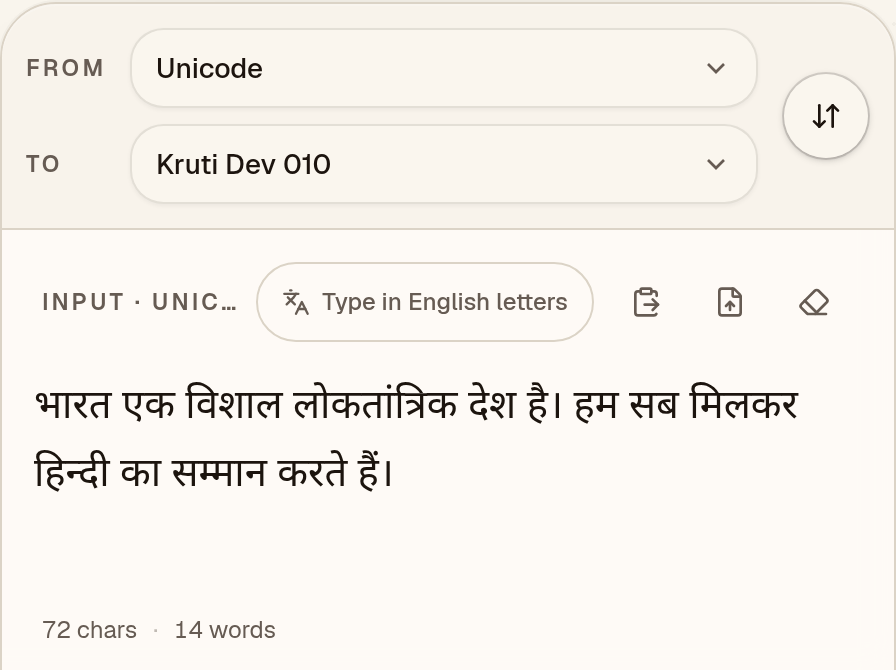
  1. Paste your Unicode Hindi

    Check that “To” says Kruti Dev 010, then paste Unicode Hindi such as “भारत एक विशाल …” from Word, Google Docs or WhatsApp.
    Unicode to Kruti Dev converter with “To” set to Kruti Dev 010 and the Unicode Hindi sample “भारत एक विशाल …” in the input box
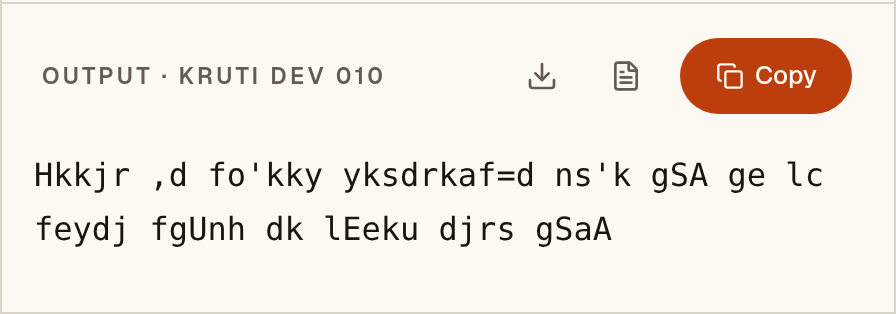
  2. Read the Kruti Dev keystrokes

    The output is the keystrokes Kruti Dev 010 expects: “Hkkjr ,d fo'kky …”. It looks like English letters until the Kruti Dev 010 font is applied. Characters the font can’t show are flagged under “notes”; this sample has none.
    Output box showing the Unicode Hindi sample converted to Kruti Dev keystrokes: “Hkkjr ,d fo'kky …”
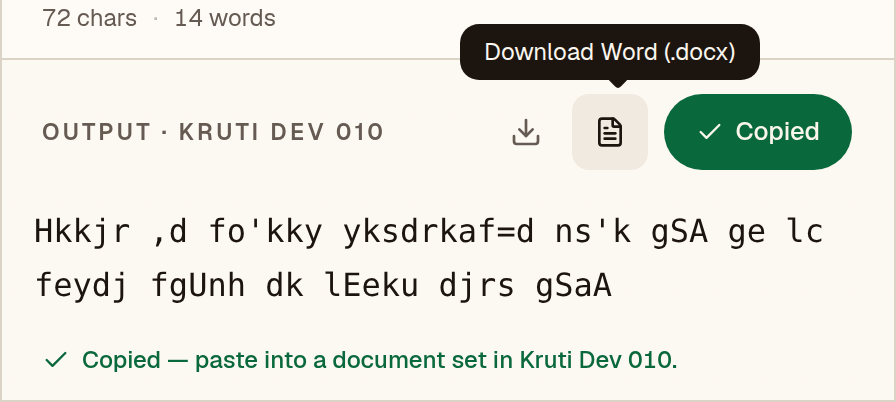
  3. Copy it into a Kruti Dev document

    After you copy “Hkkjr ,d fo'kky …”, the converter reminds you to paste it into a document set in Kruti Dev 010. The text shows as Hindi only where that font is installed.
    Unicode to Kruti Dev converter after Copy, with the message “Copied — paste into a document set in Kruti Dev 010.”
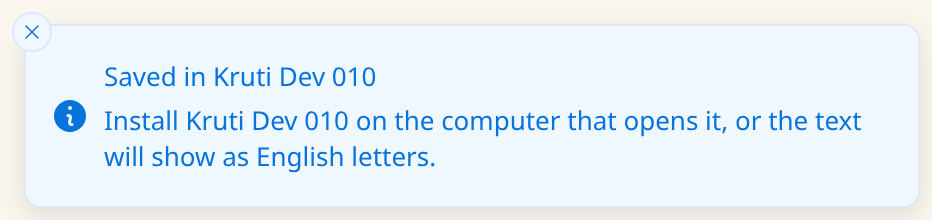
  4. Or save a Word file

    The Word button saves a .docx already set in Kruti Dev 010. Install Kruti Dev 010 on the computer that opens it, or “Hkkjr ,d fo'kky …” will show as English letters.
    Notice after the Word download: “Saved in Kruti Dev 010. Install Kruti Dev 010 on the computer that opens it, or the text will show as English letters.”

Have a whole document instead of a paragraph? The Word file converter keeps tables, bold text and layout.

03 · Worked example

One sentence, step by step.

This is the real output of the converter above for the sentence below, generated when the page was built. It reads back to the same Unicode with no warnings.

Unicode (typed)

क्षेत्रीय कार्यालय में फ़ॉर्म जमा करने की तिथि

Kruti Dev 010 keystrokes (converted)

{ks=h; dk;kZy; esa Q+‚eZ tek djus dh frfFk

What to look for in the output

  • तिथिfrfFk

    The short-i matra ि is stored after the consonant in Unicode, but Kruti Dev draws it before: the f at the start of each syllable is that matra, typed first.

  • र्मeZ

    The reph (र्) comes first in Unicode but is typed after the syllable: the Z that follows the e is the reph.

  • क्ष{k

    क्ष has its own half-form key, {; the k after it adds the full-letter stroke. It is not typed as क + ् + ष.

04 · Loss report

Characters Kruti Dev 010 can’t show.

We ran this converter over every assigned character of the Devanagari block (U+0900–097F), 128 in all, one at a time. Marks that need a base letter were tested on क. 88 of them convert and decode back to the same character (69%); the other 40 have no glyph in Kruti Dev 010. The engine keeps them as Unicode in the output and flags them, so you can fix the source text before it goes to print. Not tested: Devanagari Extended (U+A8E0–A8FF) and Vedic Extensions (U+1CD0–1CFF).

Exact
88
With a note
0
Can’t show
40

The 40 characters with no Kruti Dev 010 glyph

  • कऀU+0900
  • ऄU+0904
  • ऌU+090C
  • ऍU+090D
  • ऎU+090E
  • ऒU+0912
  • कऺU+093A
  • कऻU+093B
  • कॄU+0944
  • कॆU+0946
  • कॊU+094A
  • कॎU+094E
  • कॏU+094F
  • ॐU+0950
  • क॑U+0951
  • क॒U+0952
  • क॓U+0953
  • क॔U+0954
  • कॕU+0955
  • कॖU+0956
  • कॗU+0957
  • ॠU+0960
  • ॡU+0961
  • कॢU+0962
  • कॣU+0963
  • ॱU+0971
  • ॲU+0972
  • ॳU+0973
  • ॴU+0974
  • ॵU+0975
  • ॶU+0976
  • ॷU+0977
  • ॸU+0978
  • ॹU+0979
  • ॺU+097A
  • ॻU+097B
  • ॼU+097C
  • ॽU+097D
  • ॾU+097E
  • ॿU+097F

Letters shown on a base consonant are combining marks. Most entries are historic, regional or Vedic additions to the block; check the list before you type a name that uses one.

05 · Print & DTP

Using the output in Word, CorelDRAW and PageMaker.

The converted text is ordinary Latin characters. It only looks like Devanagari once Kruti Dev 010 is applied, so the same font must be installed wherever the file is opened or printed. These are general steps: menu names may differ by version.

Microsoft Word

  1. 1In Word’s font box, Kruti Dev 010 may be listed as “kruti dev 010” or “krutidev010”. Pick the name your installed copy shows.
  2. 2Turn off spell-check for the pasted text (Review → Language → Set Proofing Language → Do not check spelling or grammar). Word sees Latin letters and underlines everything.
  3. 3If you edit the text by typing, also turn off AutoCorrect’s “smart quotes”: legacy fonts use the straight ' and " keys for letters, and curly quotes are different characters.
  4. 4Before you send a PDF, check that it really contains the font: open it on a computer without Kruti Dev 010, or look under File → Properties → Fonts in Acrobat Reader.

Menu names and the PDF options may differ by Word version and platform.

CorelDRAW

  1. 1Choose the Text tool and set the font to Kruti Dev 010 before you paste, or select the pasted text afterwards and change it.
  2. 2If CorelDRAW offers to keep or discard the source fonts and formatting when you paste text, choose the option that applies the font you picked rather than the one from the clipboard.
  3. 3Use the font box on the property bar to confirm the text really is in Kruti Dev 010; legacy text in a Unicode font looks like random Latin letters.
  4. 4Before sending the file to a printer, convert text to curves or embed fonts, depending on what the printer asks for.

Dialog wording and the way fonts are embedded may differ by CorelDRAW version.

Adobe PageMaker

  1. 1Select the Text tool, click into a text block and choose Kruti Dev 010 from the Type → Font menu.
  2. 2Paste the converted text as plain text so the legacy characters are not restyled by the clipboard.
  3. 3Send the printer the publication together with the font file, or ask them to install the same font version; a different version of the same-named font can place a few characters differently.

PageMaker is no longer sold or updated by Adobe, so check which version your printer still uses. Menu names may differ by version.

06 · Exams & submissions

Before you submit or print.

Requirements for fonts, keyboard layouts and file types are set by each exam body, office or press and change over time. We do not list them; a short checklist that applies to any of them:

  1. Check the official notice first

    Whether an exam, office or tender asks for Kruti Dev 010, for Unicode, or for a particular keyboard layout differs by recruiting body and year. Read the current official notice for the font name, the layout and the file format before you convert anything.

  2. Convert, then compare against the original

    Convert the Unicode source to Kruti Dev 010, paste it into the document with Kruti Dev 010 selected, and read it against the original on screen. Anything the loss report flags is not in the font; fix it in the source rather than hoping it prints.

  3. Keep the Unicode source

    Keep your Unicode original. If a notice changes, a reviewer needs searchable text, or the legacy file is damaged, you can convert again; a Kruti Dev 010 file cannot be searched or read on a phone without Kruti Dev 010.

  4. Test the printed or exported copy

    Open the exported PDF or print a page before the deadline. If the notice requires a file type, convert and test on the same type of device the recipient will use.

07 · Output font

Set the output font to Kruti Dev 010 in MS Word

The converted text is Kruti Dev 010 keystrokes, so it only looks like Hindi when the Kruti Dev 010 font is applied. It has to be installed on the computer that opens the file.

Microsoft Word

  1. 1Install Kruti Dev 010 if you haven’t already (on Windows, right-click the font file → Install for all users; on Mac, use Font Book), then restart Word.
  2. 2Paste the converted text. Use Paste Special → Unformatted Text (Ctrl+Alt+V) so no formatting from the source comes along.
  3. 3Select the text and type “Kruti Dev 010” into the font box on the Home tab.
  4. 4Before sending the file to someone else, either embed fonts (File → Options → Save → Embed fonts) or export to PDF.

Google Docs

  1. 1Google Docs offers its own font list only, so Kruti Dev 010 cannot be selected there.
  2. 2Use Word or LibreOffice for the final file, then share a PDF if others need to read it.
  3. 3If the text must live in Google Docs, keep it as Unicode and convert only the final copy.

Pasting Kruti Dev 010 text into Google Docs shows English letters instead of Hindi.

08 · Mapping chart

Every key, and the letter it makes.

This is the actual table the converter uses, generated from the engine. Search for a key you see in garbled text, or for a letter you want to type.

157 mappings

Click a letter to copy the Unicode character. Click the key cap to copy the Kruti Dev 010 key.

09 · Known limits

What to watch for.

  • The short-i matra (ि) is typed before the consonant, but in Unicode it is stored after it. The reph (र्) is the opposite: typed after the syllable, stored before it. A plain find-and-replace gets both wrong; this converter reorders every syllable.
  • Microsoft Word’s AutoCorrect turns the straight apostrophe and double-quote keys, which type श् and ष्, into curly quotes. The converter recognises both the straight and the curly forms.
  • When you convert Unicode back to Kruti Dev, characters that the font simply has no glyph for are flagged in the loss report rather than silently dropped.
  • Other numbered Kruti Dev fonts (011, 016, 021…) are not guaranteed to share the 010 key assignments. If the output looks wrong, check which font the original document used.

Coverage in this converter

  • Consonants34
  • Conjuncts34
  • Half forms27
  • Punctuation17
  • Vowels13
  • Vowel signs13
  • Digits10
  • Signs8
  • Nukta1

Compared with HinLegacy and kru2uni (which share one mapping lineage) on 960 conversions, 739 matched exactly. Of the 221 differences, 149 were errors in the other converters and 72 were equivalent spellings. Round trip: we converted 50,757 Devanagari test strings (word-list words, sentences, and every consonant, vowel sign, conjunct, reph and nukta combination) to Kruti Dev 010 and back. 50,753 came back exactly; the other 4 contain a character Kruti Dev 010 has no glyph for, which the converter flags. See the accuracy page for every difference.

10 · FAQ

Questions about Unicode to Kruti Dev

Which Kruti Dev font should I set the result in?

Kruti Dev 010. The other numbered Kruti Dev fonts (011, 016, 021…) are not guaranteed to use the same keys, so a few letters may come out wrong in them.

Is Kruti Dev used for typing exams?

Sometimes, but the rules depend on the exam and the year. SSC CHSL 2023 Tier II instructions, for example, listed a Kruti Dev layout alongside InScript and Remington GAIL, while other tests use Unicode only. Check the official notification for your exam before you practise.

How do I convert Mangal text to Kruti Dev?

Mangal text is Unicode, so paste it here. Then set the output font to Kruti Dev 010 in Word or your DTP app, otherwise it shows as English letters.

Is my Hindi text uploaded to a server?

No. The conversion runs in your browser, and nothing you paste is sent anywhere.

Can I turn Kruti Dev 010 text back into Unicode later?

Yes. Paste it into the Kruti Dev to Unicode converter, or press the swap button above. Characters the loss report flagged were kept as Unicode, so they come back unchanged.

How accurate is the Kruti Dev 010 converter?

In our tests it agreed exactly with HinLegacy and kru2uni on 739 of 960 conversions. Each of the other 221 was reviewed, and 149 turned out to be errors in the other converters. The sample on this page converts exactly as expected. No fluent-speaker review has been done, so read important text before you print or submit it.

Which characters can’t Kruti Dev 010 show?

40 of the 128 assigned characters in the Unicode Devanagari block (U+0900–097F) have no Kruti Dev 010 glyph; the other 88 convert and read back unchanged. Characters it can’t show are kept as Unicode in the output and flagged, and the full list is on this page. Not tested: Devanagari Extended (U+A8E0–A8FF) and Vedic Extensions (U+1CD0–1CFF).