Skip to content
Indian Font Converters

Popular

Type a font name in English or in its own script. Search runs in your browser on a prebuilt index; nothing you type is sent anywhere.

PunjabigurmukhiLegacy → Unicode

DrChatrik to Unicode Converter

Turn DrChatrik text that looks like “gur¨” into real Punjabi: “ਗੁਰੂ”. Unicode text reads correctly on any phone, browser or search engine.

0 chars0 words
<1 ms
Live conversion Private
20
  • Runs on your device

    Nothing is uploaded. Works offline once loaded.

  • Both directions

    Swap to go Unicode → DrChatrik in one click.

  • Loss report

    Characters a font can’t show are flagged, not dropped.

  • 103 mappings

    Every one is listed in the chart below.

01 · About the font

DrChatrik, in plain words.

DrChatrik is a legacy Gurmukhi font that stores text as ordinary English letters and draws the real letters with the font itself.

DrChatrik is a legacy (non-Unicode) font. Instead of storing real Gurmukhi characters, it draws Gurmukhi shapes on top of English keys, so a document typed in it looks like random Latin letters on any device that doesn’t have the font installed.

Converting to Unicode stores the real characters, which every phone, browser and search engine understands. This converter’s mapping is based on a published open-source table; the Sources list at the end of this page names it and its licence, and the chart below lists every mapping the converter uses.
DrChatrik (as stored)

gur¨ pSjfbI

Unicode (converted by this page)

ਗੁਰੂ ਪੰਜਾਬੀ

This sample is converted with the same engine as the tool above, when this page was built, and matches the expected text exactly.

Who still uses it

  • 01

    Anyone with older Punjabi documents

    Files typed in DrChatrik show as Latin letters on any device without the font. Converting them makes the text readable, searchable and editable anywhere.

02 · How to

How to convert DrChatrik to Unicode (3 steps)

Legacy text only looks like Punjabi on a computer that has DrChatrik installed. Everywhere else (phones, WhatsApp, websites, search results) it appears as English letters like “gur¨”. Converting to Unicode fixes that for good.

  1. Paste your DrChatrik text

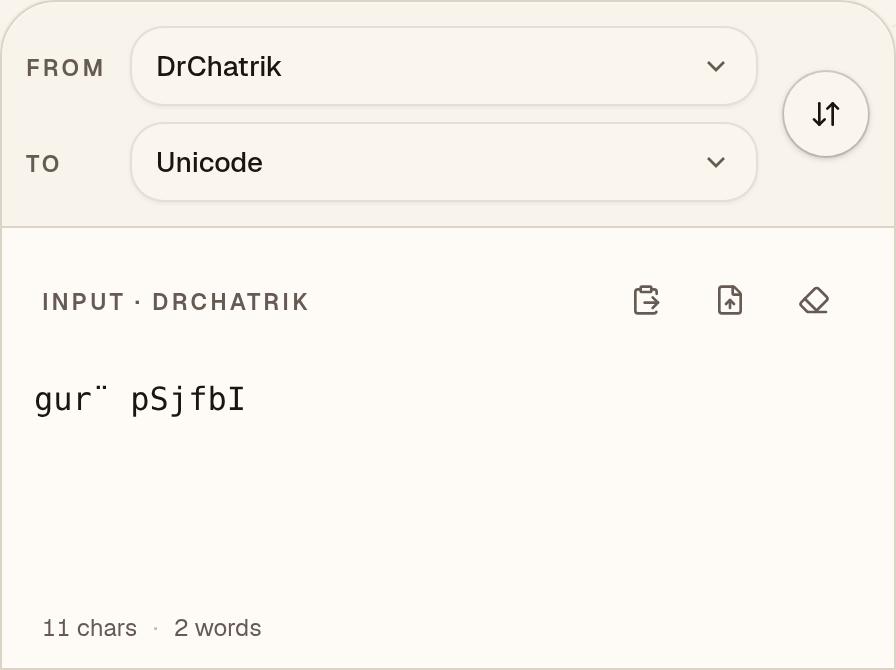
    Check that “From” says DrChatrik, then paste your text. DrChatrik text such as “gur¨ pSjfbI” looks like a jumble of English letters and symbols until it is converted.
    DrChatrik to Unicode converter with “From” set to DrChatrik and the DrChatrik sample “gur¨ pSjfbI” pasted into the input box
  2. Check the Unicode Punjabi

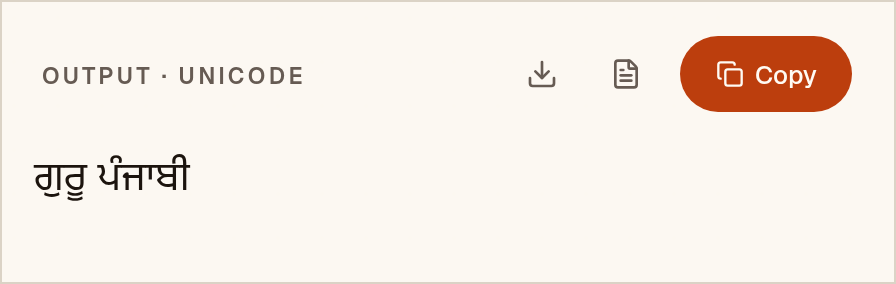
    The Unicode Punjabi appears as you paste: “ਗੁਰੂ ਪੰਜਾਬੀ”. Nothing in this DrChatrik sample was flagged. When something is, a “notes” button lists it.
    Output box showing the DrChatrik sample converted to Unicode Punjabi: “ਗੁਰੂ ਪੰਜਾਬੀ”
  3. Copy it or save a Word file

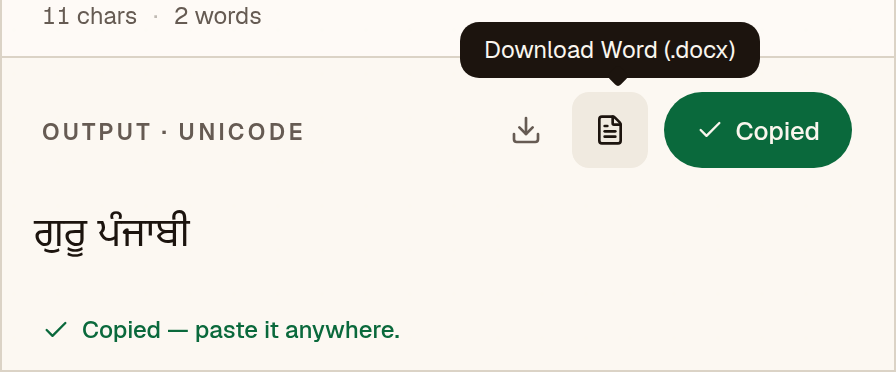
    Copy puts “ਗੁਰੂ ਪੰਜਾਬੀ” on your clipboard, ready for WhatsApp, Gmail or Google Docs. The Word button saves a .docx already set in Noto Sans Gurmukhi, so you don’t need DrChatrik to read it.
    DrChatrik to Unicode converter after Copy, with the green “Copied” button, the message “Copied — paste it anywhere.” and the Download Word (.docx) button labelled

Pick a Unicode font. Noto Sans Gurmukhi, Noto Serif Gurmukhi or Raavi will display the converted text.

Have a whole document instead of a paragraph? The Word file converter keeps tables, bold text and layout.

03 · Output font

Set the output font in MS Word or Google Docs

Unicode text is real Punjabi, so any Punjabi-capable font will display it. Pick one that looks good for your document.

Microsoft Word

  1. 1Paste the converted text, then press Ctrl+A (Cmd+A on Mac) to select everything.
  2. 2On the Home tab, click the font box, type “Noto Sans Gurmukhi” and press Enter.
  3. 3Optional: Review → Language → Set Proofing Language → Punjabi, so spell-check does not underline everything.
  4. 4If the text still shows boxes, install a Unicode font that covers the script, such as Noto Sans Gurmukhi.

Google Docs

  1. 1Paste the converted text and select it with Ctrl+A.
  2. 2Open the font menu → More fonts, search for “Noto Sans Gurmukhi” (or Noto Serif Gurmukhi) and add it.
  3. 3Apply the font. Because the text is Unicode, it also copies cleanly into Gmail, Sheets and Slides.

04 · Mapping chart

Every key, and the letter it makes.

This is the actual table the converter uses, generated from the engine. Search for a key you see in garbled text, or for a letter you want to type.

103 mappings

Click a letter to copy the Unicode character. Click the key cap to copy the DrChatrik key.

05 · Known limits

What to watch for.

  • Legacy fonts store letters in the order they are drawn, not the order they are read. The converter reorders vowel signs and conjuncts, but check the result against the original if accuracy matters.

Coverage in this converter

  • Signs53
  • Consonants32
  • Vowels10
  • Vowel signs8

Checked against Padma, the open-source converter this mapping was taken from: 212 of 240 test conversions matched exactly. All 28 differences were equivalent spellings. Because the mapping comes from that project, this checks how faithfully it was carried over, not whether the original table is right. See the accuracy page for every difference.

06 · FAQ

Questions about DrChatrik to Unicode

Is my DrChatrik text uploaded to a server?

No. The conversion runs as JavaScript in your browser, so your text never leaves your device. Once the page has loaded, it works offline too.

Which font should I use after converting DrChatrik to Unicode?

Noto Sans Gurmukhi, Noto Serif Gurmukhi or Raavi will display the converted text. Unicode text is not tied to one font, so you can switch typeface later without converting again.

How accurate is the DrChatrik converter?

It was checked against the converter its mapping came from: 212 of 240 test conversions matched Padma exactly. Each of the other 28 was reviewed. No independent converter has confirmed the table itself yet. The sample on this page converts exactly as expected. No fluent-speaker review has been done, so read important text before you print or submit it.